Viewing Data Assets
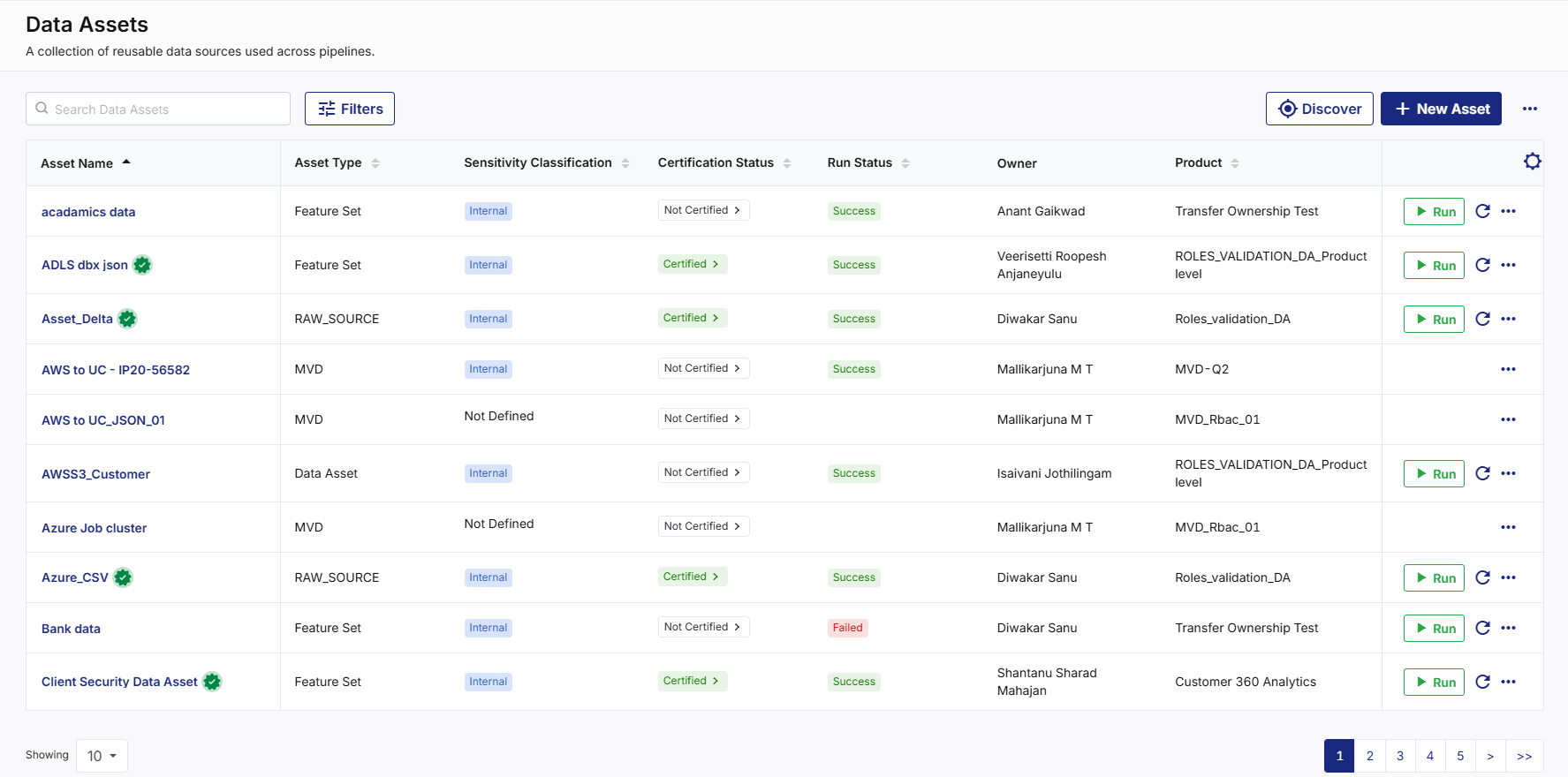
The Data Assets screen displays all the available data assets based on your product membership and permissions. Each asset appears as a row in the Data Assets table and provides summary information that helps you understand its purpose, status, and ownership.
To view a data asset
-
From the left navigation pane, you can either navigate to:
-
Data Lab > Data Assets or Products > Data Assets
-
The Data Assets screen appears with a list of available assets in a table format.
-
The Data Assets table displays the following information:
-
Asset Name
-
Asset Type
-
Sensitivity Classification
-
Certification Status
-
Run Status
-
Owner
-
Product
-
This information helps you quickly assess the current state of an asset without opening its details page. Depending on your permissions, the Data Assets screen provides actions such as:
-
View Asset Details
-
Run Asset
-
Refresh Asset Status
-
Additional Actions in the Ellipsis (…)
-
Understanding Data Asset Details, Status and Indicators
Data Assets display several indicators that help you understand their operational state, governance status, and readiness for use. These indicators appear throughout the Data Assets experience, including the asset list and asset details screens.
Sensitivity Classification
Sensitivity Classification indicates how the organization handles and protects the data contained in the asset. You must review the sensitivity classification before using or sharing an asset.
The classification includes:
-
Public
-
Internal
-
Confidential
-
Restricted
Run Status
Run Status indicates the outcome of the most recent asset execution and helps you understand the operational health of an asset. Common values include:
| Status | Description |
|---|---|
| Running | The asset execution is in progress. |
| Successful | The asset is executed successfully. |
| Failed |
The asset execution encountered an error. |
Certification Status
Certification Status indicates whether an asset is approved and helps you identify trusted and certified datasets. Common values include:
| Status | Description |
|---|---|
| Not Certified | The asset is not certified. |
| In Review | The asset is under review. |
| Certified |
The asset meets governance and approval requirements. |
| Decertified | The asset no longer maintains certified status. |
Approval Status
Approval Status indicates the current state of governance review activities. Depending on the workflow, the following statuses are displayed:
-
Draft
-
Pending
-
Approved
-
Rejected
Configuration Status
Configuration Status indicates whether the required asset configuration steps are completed. Examples include:
-
Metadata Only
-
Configured

Note:
You must complete all required configuration tasks before publishing or certifying an asset.
Asset Activity Indicators
The asset activity indicators help you understand how an asset evolves over time and assess its adoption and maintenance activities. Examples include:
-
Created Date
-
Last Modified Date
-
Last Accessed Date
-
Usage Count.
|
What's next? Customizing Table Columns |
 Recommended Topics